


Command List
| Command | Description |
|---|---|
/help | Displays help. |
/join | Joins a voice channel. |
/play | Plays music from a search term or URL. |
/stop | Stops playback and disconnects from the voice channel. |
/pause | Pauses the currently playing song. |
/skip | Skips the current song. |
/loop | Toggles looping. |
/volume | Sets the volume. |
/queue | Displays the current queue. |
/queue-edit | Edits the queue order. |
/position | Displays the current playback position. |
/lyrics | Searches for lyrics for the currently playing song. |
/search | Searches for music by keyword. |
/equalizer | Imports an equalizer. |
/ranking | Displays the playback ranking. |
/settings | Configures the bot. |
Commands with Arguments
/play
The Play command is the most basic command in this bot.
It includes the following options.
playlist_is_trackTreat a playlist as a single trackshuffle_playlistAdd a playlist in shuffled order
/skip
The Skip command skips the audio currently being played.
It includes the following options.
numNumber of songs to skip
/volume
The Volume command sets the volume used during audio playback.
It includes the following options.
volumeVolume (integer from 0 to 150)
/search
The Search command searches for and plays YouTube videos from within Discord.
It includes the following options.
querySearch term to use for the search
/equalizer
The Equalizer command applies a custom equalizer created with the equalizer editor.
Executing this command requires the manage_guild permission.
It includes the following options.
codeCustom code you created
/ranking
The Ranking command lets you view an image of song playback rankings through the bot.
Currently, only Spotify songs are counted.
It includes the following options.
periodAggregation period (weekly/monthly)typeAggregation by type (artist/song)
Commands with Separate UIs
/queue
The Queue command displays a list of the songs currently added.
It provides a UI like the following.
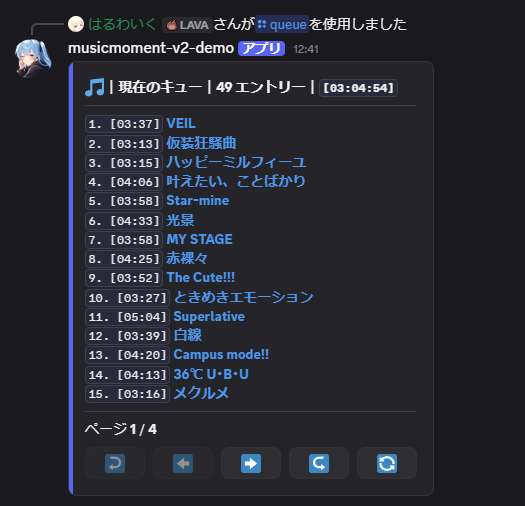
Button functions
- ↩️ -> Return to the first page
- ⬅️ -> Return to the previous page
- ➡️ -> Go to the next page
- ↪️ -> Jump to the last page
- 🔄 -> Reload the queue
/queue-edit
The Queue-edit command edits the current queue order.
It provides a UI like the following.
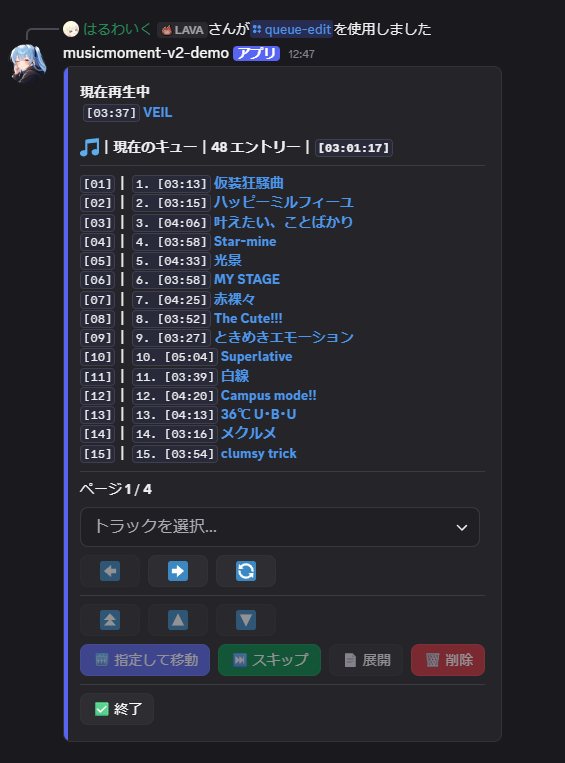
Numbers displayed like [01] are index numbers used in queue-edit and are unrelated to the actual queue order.
Select the track or playlist you want to edit from the select menu below the page indicator, then use the buttons at the bottom to operate on it.
Button functions
- ⬅️ -> Return to the previous page
- ➡️ -> Go to the next page
- 🔄 -> Reload the queue
- ⏫ -> Move the item to the front of the queue
- 🔼 -> Move the item up one position
- 🔽 -> Move the item down one position
- 🛗 -> Move the item to the specified index number
- ⏭️ -> Skip to the selected location
- 📄 -> Expand the selected playlist
- 🗑️ -> Remove the item from the queue
- ✅ -> Close the menu
/position
The Position command displays the currently playing song and playback position.
Currently, this message is automatically updated every 20 seconds.
It provides a UI like the following.
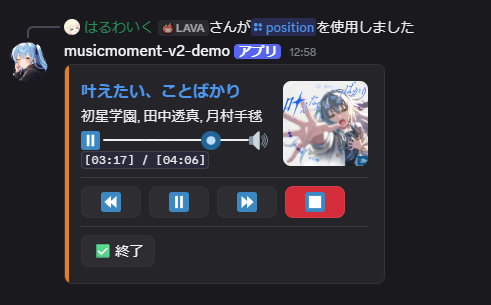
Button functions
- ⏪ -> Rewind 10 seconds
- ⏸️/▶️ -> Toggle pause/playback
- ⏩ -> Fast-forward 10 seconds
- ⏹️ -> Skip the song
- ✅ -> Close the menu
/settings
The Settings command configures the bot. Administrator permission is required.
It provides a UI like the following.
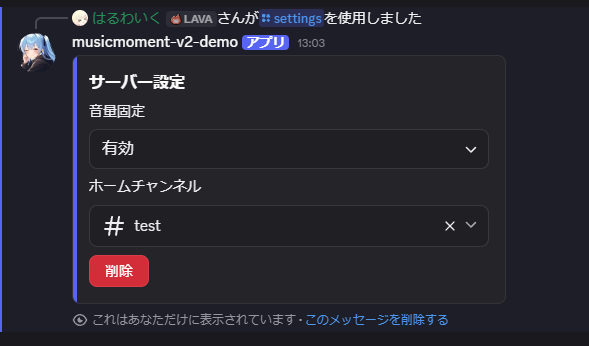
Fixed volume restricts server members from changing the volume themselves.
It is mainly useful for moderation.
The home channel lets you specify where the automatically sent now-playing message is sent.
You can cancel the setting by pressing the delete button.